GrabFood add-ons are the paid choices a customer makes on a dish they have already picked: a larger size, an extra topping, a side or a drink. On Grab they are built as option groups, which Grab defines as sets of choices linked to menu items, allowing customers to personalise their orders1, and each option can carry the extra price the customer pays for it, such as an additional 50 baht for a large size in Grab Thailand's example2. No Grab page we found says how much add-ons raise an order's value. What it gives you is the tool, the data to choose what to offer, and in Thailand a fee that gives customers a reason to add something to a small order.
This guide covers Grab in Singapore, Malaysia, Thailand, the Philippines, Vietnam and Indonesia. The option group tool is the same in all six; the examples below come from each market's own help centre.
What is an option group on GrabFood?
An option group is a list of choices attached to a dish. Grab's Singapore help centre gives ice levels, sugar levels and drink sizes as examples3; Indonesia's adds extra toppings4. In the GrabMerchant app you can start from a template: Thailand's help centre lists five, size, spiciness level, toppings, ice or no ice, and add-ons5. Vietnam's list includes side dishes among its templates6, and says each option is set up with the price the customer pays in addition when choosing it, if there is one7. An option can therefore be free, such as a spice level, or paid, such as a larger size.
One group can serve many dishes. After you create it, you link it to the menu items it applies to8, so a single "Add a drink" group can sit under every main dish on your menu.
Which add-ons raise the basket?
The add-ons that sell are the ones customers already want with the dish. Grab points you to them in two ways. Grab Vietnam, in a merchant blog post dated 22 July 20209, encouraged restaurants to add combos based on the dishes customers like to order together10. In Thailand, Menu Insights shows popular combinations of menu items, to help you create combo pairings that appeal to your customers11. The same data tells you which side or drink to offer as an add-on under each main dish.
Four kinds of add-on are worth testing first:
- A bigger size of a dish or a drink that already sells.
- An extra that customers ask for: more protein, an egg, extra cheese, extra sauce.
- A side that completes the dish: rice, bread, fries, a salad.
- A drink under every main, for the customer who would otherwise order it elsewhere.
In Thailand, a small order has a cost for the customer. In Bangkok, Pathum Thani, Nonthaburi, Samut Prakan and Samut Sakhon12, customers pay an extra 20 baht13 when their order is under 80 baht14. Grab states that this small order fee does not affect the restaurant's commission15, and suggests that restaurants build set menus or run promotions that raise the order value, so customers avoid the fee16. A drink or a side offered as an add-on on your lower priced dishes does the same job.
Should an add-on group be required or optional?
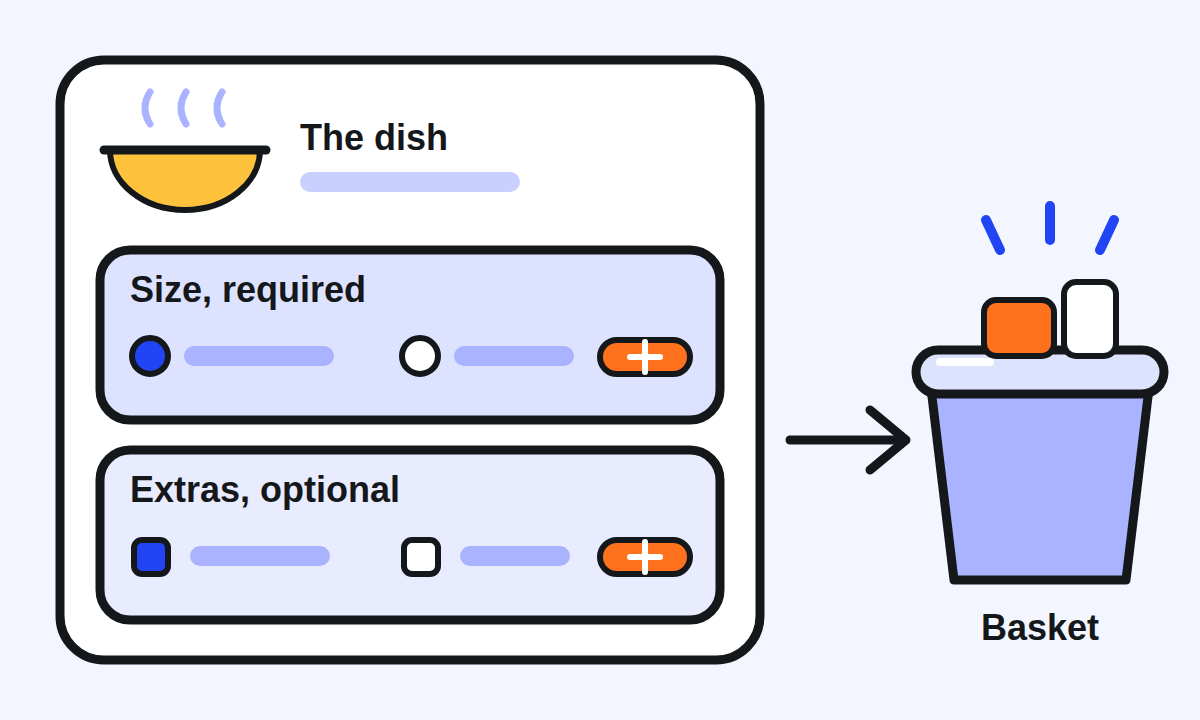
Grab lets you decide for each group. Required means customers must choose at least one option from the group17; optional means they do not have to choose anything18. You can also allow more than one choice19 and set the minimum and maximum a customer can select20.
Keep required groups for the choices the dish cannot be made without, such as a size or a spice level, and make paid extras optional. Research on online customisation points the same way. Across five studies with mainly European students and university employees21, published on 31 July 202522, the author found that reactions to a higher number of customisable attributes are less positive when only a customisation tool is available23, through more effort and confusion24. When a standard choice was offered beside them, many attributes could still produce positive evaluations and a high purchase likelihood25. The products were granola, socks, running shoes and watches26, not meals, so read it as a direction, not a rule: every required choice is a step between the customer and the checkout.
What to do: for each required group, make the first option the one most customers take, at no extra charge, so a customer in a hurry can add the dish in one tap.
How should you price an add-on?
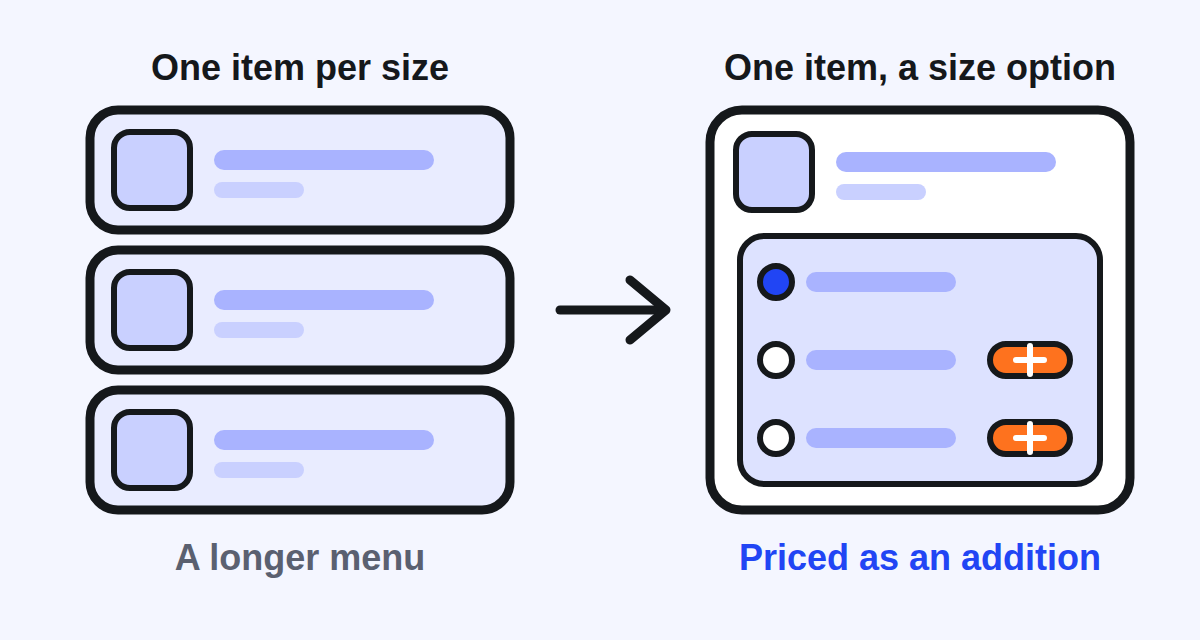
On Grab, you enter an option's name and the additional price for choosing it27, so the upgrade is priced as what it adds, not as a second full price. Research suggests that stating what an upgrade adds helps the bigger choice. In a field experiment published on 12 July 202328, researchers worked with a large German basic clothing retailer29 and tested two ways of showing the price of a bigger pack: the extra cost, such as "for $20 more"30, or the total, such as "for $60 total"31. Showing the extra cost increased the share of higher priced choices32, across 45,626 add-to-cart events and 30,426 completed purchases33. The effect was much weaker in completed purchases than in carts34. It was clothing, not food, so expect a nudge, not a jump.
That is also why Grab Vietnam's help centre advises setting up choices such as size or type as options, so customers can choose easily35, rather than listing each size as its own dish.
What to do: price each add-on on what it costs you to make and pack, then check that it still leaves you something after Grab's commission. Do it for the drinks and sides first: they go with almost every dish.
How do customers take two of the same add-on?
Grab Singapore's help centre describes Flexible Modifier Quantity, which gives consumers more flexibility when customising their orders36: a customer can take two portions of the same extra instead of finding it listed twice. Grab presents it as reducing the need to create duplicate modifier options or groups37, and says you will be nudged in the app to activate it38. Malaysia's help centre describes the same setting as enabling option quantity, where customers can select the quantity for each option39. If your market's app offers it, turn it on for the extras that customers often double, such as an extra egg or extra cheese.
How do you set up an option group in the GrabMerchant app?
Grab's Singapore help centre gives the steps. On the GrabMerchant app homepage, go to Menu, then Option Groups, then Add option group40. Choose a template, fill in the name, the pricing and how many options a customer can select, then tap Create Option Group41. Link the group to the dishes it applies to and tap Done8. You can drag the options into the order you want and set whether a choice is required42. The Philippine help centre's version is the same: name the group, then input each option's name and price43.
Put the option most customers take at the top of each group, and the paid upgrade you most want to sell just below it.
What should you check this week?
- Your best selling dishes: does each one have the add-on customers most often want with it?
- Your drinks: are they offered as an add-on under your main dishes?
- Each required group: is the first option the usual choice, at no extra charge?
- Your sizes: one dish with a size option, not one dish per size.
- Your add-on prices: what each one leaves you after its cost and Grab's commission.
- Your Insights: the combinations customers already order together.
Kontimo helps people running restaurants on Grab read their menu each month, explained in plain language, including which dishes carry a paid add-on and which ones are bought together.