วารสารบทความติดอันดับและถูกค้นเจอ
เทมเพลตเมนู GrabFood: แก้ทั้งเมนูในครั้งเดียว
เทมเพลตเมนูของ GrabFood (แกร็บ) คือไฟล์อัปเดตทีละหลายรายการในพอร์ทัล GrabMerchant: กรอกอย่างไร อัปโหลดอย่างไร แก้ข้อผิดพลาดอย่างไร และอะไรที่เปลี่ยนหรือย้อนกลับไม่ได้
ประเทศ: สิงคโปร์, มาเลเซีย, ไทย, ฟิลิปปินส์, เวียดนาม, อินโดนีเซีย เผยแพร่ โดย Kontimo

เทมเพลตเมนู GrabFood (แกร็บ) แอปส่งอาหาร คือไฟล์อัปเดตทีละหลายรายการ (Bulk Update) ในพอร์ทัล GrabMerchant เป็นตารางเดียวที่ใช้สร้าง แก้ไข ลบ และจัดลำดับจานและหมวดหมู่จำนวนมากได้ในครั้งเดียว ทีละร้าน1 คุณดาวน์โหลดไฟล์จากพอร์ทัล23 กรอกข้อมูล ใส่รูป แล้วอัปโหลด ไฟล์นี้ช่วยประหยัดเวลาได้มากสำหรับเมนูใหญ่ แต่การอัปโหลดย้อนกลับไม่ได้18 บทความนี้บอกวิธีกรอก สิ่งที่ไฟล์ไม่รับ และสามเรื่องที่ต้องเช็กก่อนกดเผยแพร่
หาเทมเพลตเมนู GrabFood ได้ที่ไหน?
ในพอร์ทัล GrabMerchant ไม่ใช่ในแอป ไปที่เมนู แล้วเลือกอัปเดตทีละหลายรายการ แล้วเลือกเพิ่มรายการทีละหลายรายการ2 และดาวน์โหลดเทมเพลต CSV ในขั้นที่ 13 ไฟล์นี้ใช้ได้ทีละร้าน1 ส่วนกลุ่มร้านมีเครื่องมือของตัวเอง ซึ่งอธิบายไว้ด้านล่าง
ถ้าต้องการแก้จานที่มีอยู่แล้ว ให้ใช้การแก้ไขทีละหลายรายการแทน และดาวน์โหลดเมนูปัจจุบัน โดยเลือกรายการที่ต้องการแก้14 ไฟล์นั้นมีรหัสของแต่ละจาน ซึ่งเป็นสิ่งที่ Grab ใช้รู้ว่าคุณหมายถึงจานไหน
กรอกเทมเพลตอย่างไร?
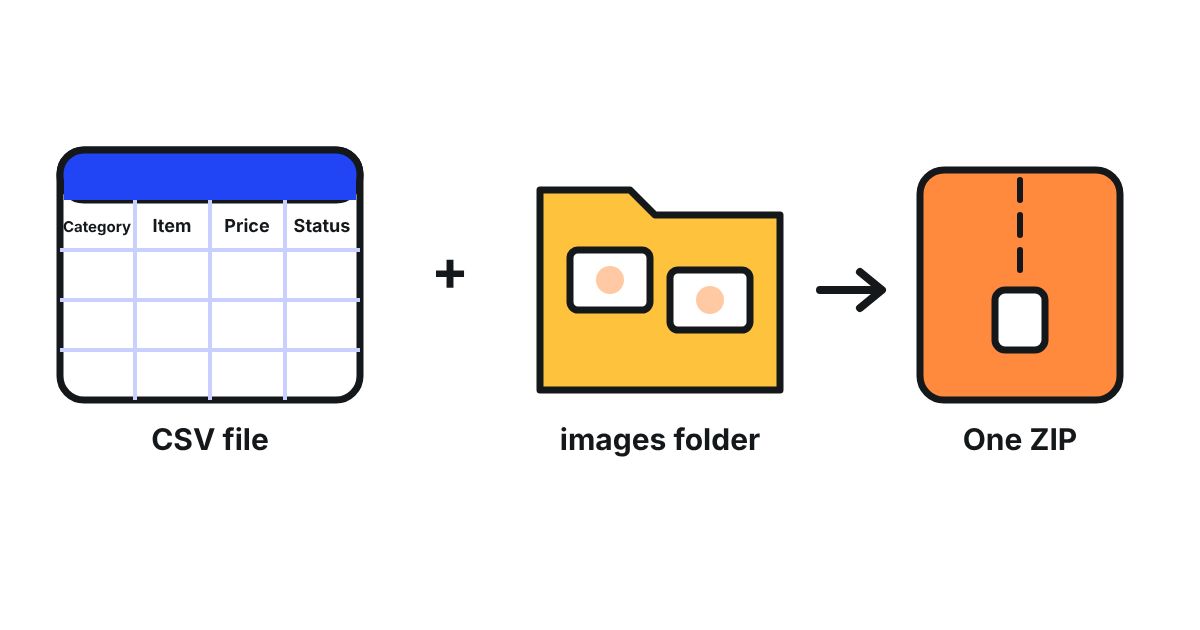
มีสี่คอลัมน์ที่ต้องกรอก คือชื่อหมวดหมู่ ชื่อรายการ ราคา และสถานะการขาย4 อย่าแก้สองแถวแรก เพราะเป็นหัวคอลัมน์และคำอธิบาย5
- ชื่อหมวดหมู่ ไม่เกิน 60 ตัวอักษร6 สะกดหมวดหมู่ที่มีอยู่ให้ตรงทุกตัว รวมถึงตัวพิมพ์ใหญ่ เพราะถ้าสะกดต่างไปจะกลายเป็นหมวดหมู่ใหม่10
- ชื่อรายการ ไม่เกิน 80 ตัวอักษร รวมช่องว่าง7 Grab ขอให้ขึ้นต้นแต่ละคำด้วยตัวพิมพ์ใหญ่ในชื่อภาษาอังกฤษ32 และไม่รับเบอร์โทรศัพท์ในชื่อรายการ27
- ราคา เป็นจำนวนเต็ม ไม่มีทศนิยม8
- สถานะการขาย เลือกหนึ่งใน AVAILABLE, UNAVAILABLE_TODAY หรือ UNAVAILABLE_PERMANENTLY9
รูปต้องแนบไปข้างไฟล์ ใส่รูปไว้ในโฟลเดอร์ชื่อ images ตัวพิมพ์เล็ก โดยชื่อไฟล์ต้องตรงกับคอลัมน์รูป11 รูปแต่ละรูปไม่เกิน 2MB13 จากนั้นรวมไฟล์ CSV และโฟลเดอร์ images ไว้ในไฟล์ ZIP เดียว ขนาดไม่เกิน 200MB และไม่มีอักขระพิเศษในชื่อไฟล์12 ในไฟล์แก้ไข ถ้าเว้นคอลัมน์รูปว่างไว้ รูปเดิมจะยังอยู่17 ถ้าต้องการลบรูป ให้พิมพ์ DELETE16
เทมเพลตทำอะไรไม่ได้บ้าง?
- ย้อนกลับไม่ได้ การอัปโหลดทีละหลายรายการย้อนกลับไม่ได้ ควรดาวน์โหลดเมนูเก็บไว้ก่อนเป็นสำรอง18 หน้าของเวียดนามก็บอกเช่นเดียวกัน19
- ไม่เปลี่ยนราคาเฉพาะ เปลี่ยนได้เฉพาะราคาหลัก ราคาที่ตั้งไว้สำหรับรับเองหรือเดลิเวอรี่ต้องแก้เองในแอปหรือพอร์ทัล20
- ไม่แก้จานที่มีโปรโมชัน รายการที่มีโปรโมชันกำลังจะเริ่มหรือกำลังใช้อยู่ แก้ไม่ได้จนกว่าโปรโมชันจะจบ21
- ไม่แก้รายการแอลกอฮอล์ รายการเหล่านี้ต้องแก้เองในพอร์ทัล22
- ไม่ขยับราคาไกลในครั้งเดียว การแก้ราคาถูกจำกัดเป็นเปอร์เซ็นต์ของราคาเดิม ถ้าขีดจำกัดคือ 30 จานราคา 100 จะเปลี่ยนได้ระหว่าง 70 ถึง 13023 พอร์ทัลของมาเลเซียระบุไว้ที่ 20% ต่อการแก้หนึ่งครั้งสำหรับราคาที่แก้เอง24 ถ้าต้องการขึ้นราคามากกว่านั้น ให้ทำเป็นขั้น
ถ้าอัปโหลดไม่ผ่านต้องทำอย่างไร?
ดาวน์โหลดไฟล์ที่ Grab ส่งกลับมา25 แล้วเปิดคอลัมน์รายงานข้อผิดพลาด ซึ่งบอกว่าแต่ละแถวผิดตรงไหน26 สาเหตุที่พบบ่อยคือช่องที่เว้นว่าง รหัสรายการที่ถูกแก้ ราคาที่ขยับเกินขีดจำกัด23 เบอร์โทรศัพท์ในชื่อ27 หรือหมวดหมู่ที่เต็มแล้ว28 แก้ไฟล์แล้วอัปโหลดใหม่ ในไฟล์แก้ไข ห้ามแตะคอลัมน์ A ซึ่งเป็นรหัสรายการ15 เพราะเป็นสิ่งที่เชื่อมแต่ละแถวกับจานของมัน
เทมเพลตเดียวใช้กับหลายร้านได้ไหม?
ไฟล์อัปเดตทีละหลายรายการใช้ไม่ได้ เพราะทำงานทีละร้าน1 สำหรับกลุ่มร้าน พอร์ทัลของสิงคโปร์มีเมนูหลายสาขา คือเมนูเดียวที่ใช้ร่วมกันได้ถึง 50 ร้าน29 แก้ได้ในพอร์ทัลเท่านั้น ส่วนในแอปแก้ได้แค่สถานะการขายและจำนวนสต็อก2930 เมื่อเผยแพร่ เมนูนี้จะแทนที่เมนูของทุกร้านที่เลือก31 จึงควรดาวน์โหลดเมนูของแต่ละร้านก่อนจัดกลุ่ม
ก่อนกดเผยแพร่ควรเช็กอะไร?
- ดาวน์โหลดเมนูปัจจุบันเก็บไว้เป็นสำรองแล้ว
- ชื่อหมวดหมู่คัดลอกมาจากเมนู ไม่ได้พิมพ์ใหม่
- ราคาอยู่ในขีดจำกัดของการแก้หนึ่งครั้ง และจดราคาเฉพาะไว้เพื่อแก้เองภายหลัง
- ไม่มีจานที่มีโปรโมชันอยู่ในไฟล์
จากนั้นอัปโหลดและกดเผยแพร่33 แล้วเปิดร้านของคุณในมุมของลูกค้าเพื่อเช็กสามจาน
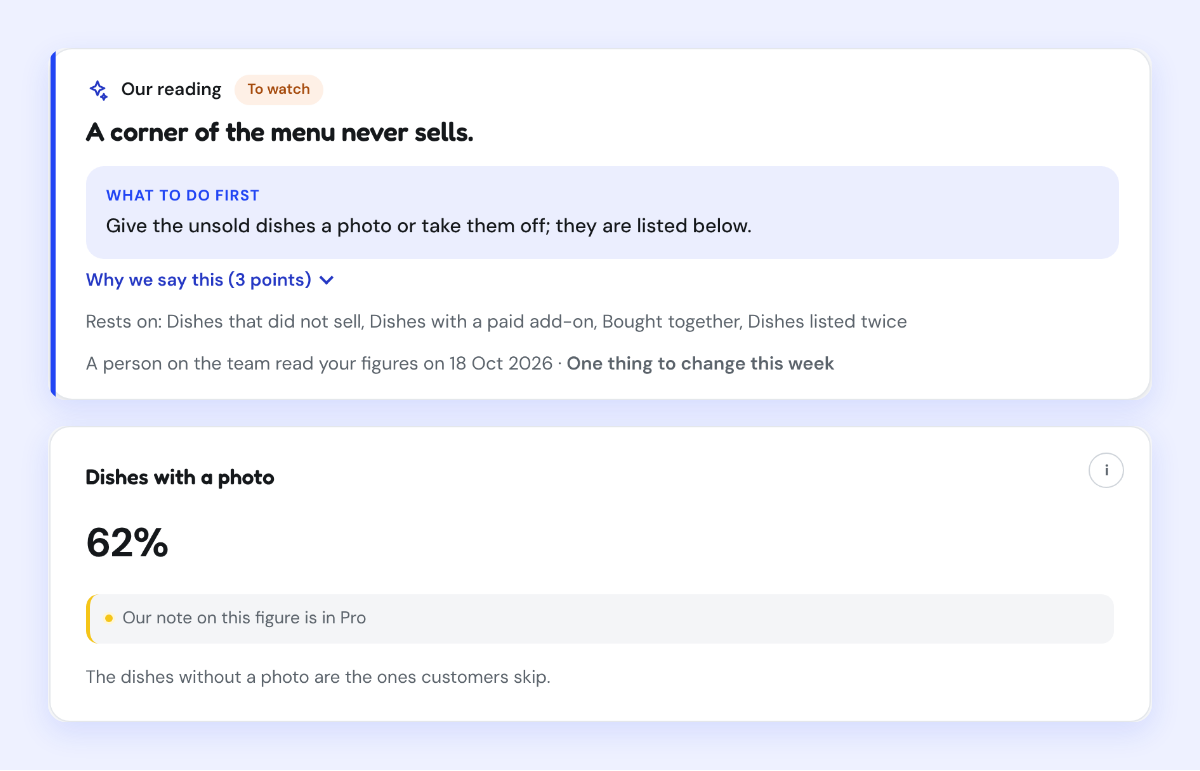
Kontimo อ่านเมนู GrabFood ของคุณทุกเดือน และบอกเป็นภาษาง่าย ๆ ว่าควรเปลี่ยนจาน ชื่อ หรือหมวดหมู่ไหนก่อน เพื่อให้การอัปเดตครั้งต่อไปแก้ในสิ่งที่สำคัญ
แหล่งข้อมูล 33 เอกสาร ตัวเลขทุกตัวตรวจย้อนกลับได้
- Using Bulk Update to manage multiple items (Grab merchant help centre, Singapore), text of the article (อ่านเมื่อ 2026-11-20)
With the Bulk Update feature on the GrabMerchant portal, you can create, edit, delete, and rearrange items and categories all at once. This feature is available at the individual outlet level only.
- Using Bulk Update to manage multiple items (Grab merchant help centre, Singapore), text of the article (อ่านเมื่อ 2026-11-20)
Go to Menu > Bulk Updates > Bulk add items on the GrabMerchant portal homepage.
- Using Bulk Update to manage multiple items (Grab merchant help centre, Singapore), text of the article (อ่านเมื่อ 2026-11-20)
Under Step 1: Prepare your files, download the CSV template.
- Using Bulk Update on GrabFood menu (Grab merchant help centre, the Philippines), text of the article (อ่านเมื่อ 2026-11-20)
Fields marked with an asterisk (*) are mandatory (e.g., Category Name, Item Name, Price, Available Status).
- Using Bulk Update on GrabFood menu (Grab merchant help centre, the Philippines), text of the article (อ่านเมื่อ 2026-11-20)
Do not delete or overwrite rows 1 and 2 in the template.
- Buat hidangan dalam jumlah banyak sekaligus (Grab merchant help centre, Indonesia), text of the article (อ่านเมื่อ 2026-11-20)
Nama Kategori: Maksimal 60 karakter.
- Buat hidangan dalam jumlah banyak sekaligus (Grab merchant help centre, Indonesia), text of the article (อ่านเมื่อ 2026-11-20)
Nama Item: Maksimal 80 karakter, termasuk spasi.
- Using Bulk Update to manage multiple items on GrabFood menu (Grab merchant help centre, Thailand), text of the article (อ่านเมื่อ 2026-10-21)
Use only whole numbers without a decimal point.
- Buat hidangan dalam jumlah banyak sekaligus (Grab merchant help centre, Indonesia), text of the article (อ่านเมื่อ 2026-11-20)
Status Ketersediaan: Pilih salah satu dari AVAILABLE, UNAVAILABLE_TODAY, atau UNAVAILABLE_PERMANENTLY.
- Using Bulk Update to manage multiple items (Grab merchant help centre, Singapore), text of the article (อ่านเมื่อ 2026-11-20)
Incorrect spelling or case sensitivity will create a new category.
- Using Bulk Update on GrabFood menu (Grab merchant help centre, the Philippines), text of the article (อ่านเมื่อ 2026-11-20)
Create a folder named images (all lowercase) and add your menu item images. Ensure the file names match those listed in the .csv file.
- Using Bulk Update on GrabFood menu (Grab merchant help centre, the Philippines), text of the article (อ่านเมื่อ 2026-11-20)
Combine the .csv file and images folder into a ZIP file. Ensure the ZIP file is under 200MB and has no special characters in its name.
- Using Bulk Update to manage multiple items (Grab merchant help centre, Singapore), text of the article (อ่านเมื่อ 2026-11-20)
Max file size: 2MB per image.
- Using Bulk Update to manage multiple items (Grab merchant help centre, Singapore), text of the article (อ่านเมื่อ 2026-11-20)
Click Download catalogue and select the items you want to edit.
- Using Bulk Update to manage multiple items (Grab merchant help centre, Singapore), text of the article (อ่านเมื่อ 2026-11-20)
Do not remove or modify column A (*ItemID).
- Using Bulk Update on GrabFood menu (Grab merchant help centre, the Philippines), text of the article (อ่านเมื่อ 2026-11-20)
To delete an image, input ""DELETE"" in the photo column.
- Using Bulk Update on GrabFood menu (Grab merchant help centre, the Philippines), text of the article (อ่านเมื่อ 2026-11-20)
Leave the photo column blank to retain the current image.
- Using Bulk Update on GrabFood menu (Grab merchant help centre, Malaysia), text of the article (อ่านเมื่อ 2026-11-20)
No, bulk uploads cannot be reversed. Always download your menu beforehand as a backup.
- Quản lý thực đơn GrabFood với tính năng cập nhật hàng loạt (Grab merchant help centre, Vietnam), text of the article (อ่านเมื่อ 2026-11-20)
Đối tác sẽ không thể hoàn tác quá trình tải lên hàng loạt.
- Using Bulk Update to manage multiple items (Grab merchant help centre, Singapore), text of the article (อ่านเมื่อ 2026-11-20)
No, Bulk Update only updates default pricing. Custom prices (e.g., self pick-up, delivery) must be updated manually in the app or portal.
- Resolve GrabFood bulk update errors (Grab merchant help centre, Malaysia), text of the article (อ่านเมื่อ 2026-11-20)
Can't edit this item as it has upcoming or ongoing promotion. Try again after the promotion has ended.
- Resolve GrabFood bulk update errors (Grab merchant help centre, Malaysia), text of the article (อ่านเมื่อ 2026-11-20)
This item can't be edited through bulk updates because it's alcohol.
- How to understand the Bulk Update error report (Grab merchant help centre, Singapore), text of the article (อ่านเมื่อ 2026-11-20)
For example, if the original price is 100 and x = 30, the new price must be between 70 and 130.
- Edit my menu via the GrabMerchant Portal (Grab merchant help centre, Malaysia), text of the article (อ่านเมื่อ 2026-11-20)
You can adjust item prices directly via the GrabMerchant Portal, with a maximum change of 20% per edit.
- How to understand the Bulk Update error report (Grab merchant help centre, Singapore), text of the article (อ่านเมื่อ 2026-11-20)
When an error message appears, click Download to retrieve the .csv file containing the error report.
- How to understand the Bulk Update error report (Grab merchant help centre, Singapore), text of the article (อ่านเมื่อ 2026-11-20)
Open the .csv file and locate the Error Report column to identify the specific issue.
- Resolve GrabFood bulk update errors (Grab merchant help centre, Malaysia), text of the article (อ่านเมื่อ 2026-11-20)
ItemName You can't enter a phone number in the item name.
- Resolve GrabFood bulk update errors (Grab merchant help centre, Malaysia), text of the article (อ่านเมื่อ 2026-11-20)
You've reached the maximum of <x> items in this category.
- How to create a multi-store menu (Grab merchant help centre, Singapore), text of the article (อ่านเมื่อ 2026-11-20)
With the multi-store menu feature on the GrabMerchant portal, you can create and update a shared menu for up to 50 stores in one go.
- How to create a multi-store menu (Grab merchant help centre, Singapore), text of the article (อ่านเมื่อ 2026-11-20)
Multi-store menu edits can only be made on the GrabMerchant portal. On the GrabMerchant app, you can only edit item availability and stock count.
- How to create a multi-store menu (Grab merchant help centre, Singapore), text of the article (อ่านเมื่อ 2026-11-20)
Confirm that the new menu will replace the original menus of all selected stores by clicking Confirm & Publish.
- Edit my menu via the GrabMerchant Portal (Grab merchant help centre, Malaysia), text of the article (อ่านเมื่อ 2026-11-20)
Use Title Case for item names (e.g., "Chicken Burger with Fries").
- Using Bulk Update to manage multiple items (Grab merchant help centre, Singapore), text of the article (อ่านเมื่อ 2026-11-20)
Upload the ZIP file on the portal and click Publish to confirm.
ตัวเลขทุกตัวข้างต้นมาจากเอกสารเหล่านี้ ตามที่เป็นอยู่ในวันที่ระบุ ตัวเลขที่ใช้กับร้านของคุณจริงคือสัญญาและรายงานยอดของร้านคุณเอง