JournalArticlesRank & Get Found
GrabFood menu template: change your whole menu at once
The GrabFood menu template is the Bulk Update file of the GrabMerchant portal: how to fill it, upload it, fix its errors, and what it cannot change or undo.
Singapore, Malaysia, Thailand, Philippines, Vietnam, Indonesia. Published , by Kontimo
The GrabFood menu template is the Bulk Update file of the GrabMerchant portal: one spreadsheet that creates, edits, deletes and rearranges many dishes and categories at once, store by store1. You download it from the portal23, fill it, add your photos, and upload it. It saves hours on a big menu, but an upload cannot be undone18. Here is how to fill it, what it refuses, and the three checks to make before you press Publish.
Where do you find the GrabFood menu template?
On the GrabMerchant portal, not in the app. Go to Menu, then Bulk Updates, then Bulk add items2, and download the CSV template under Step 13. The file works for one store at a time1: a group of stores has its own tool, below.
To change dishes that already exist, use Bulk edit items instead and download your current menu, choosing the items you want to change14. That file carries each dish's ID, which is how Grab knows which dish you mean.
How do you fill the template?
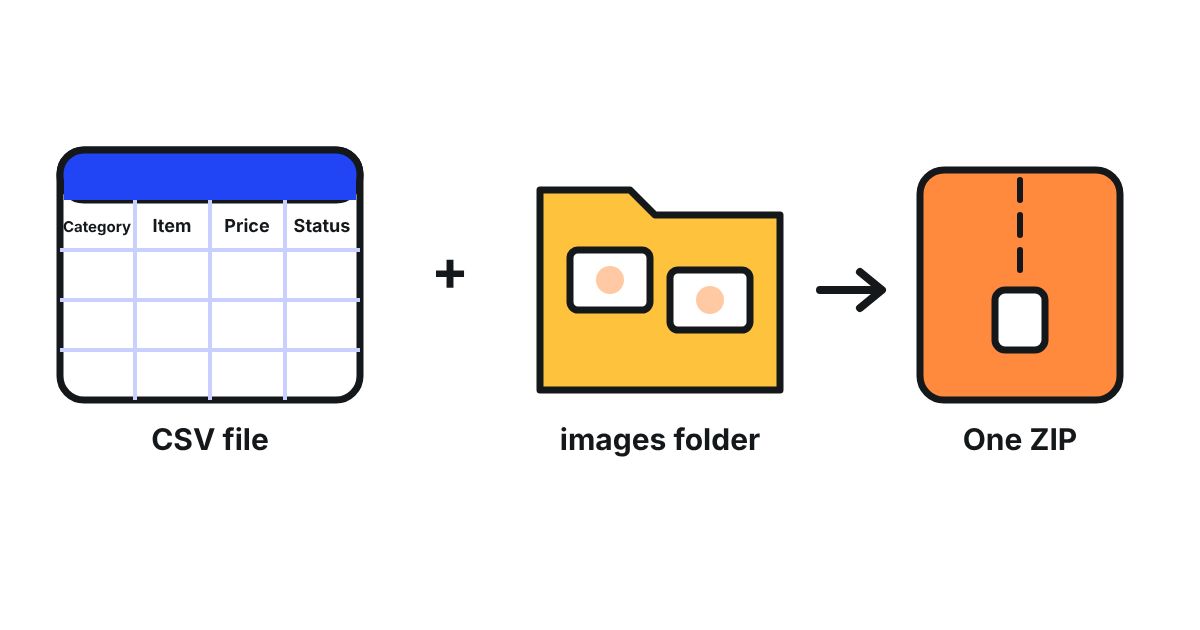
Four columns are mandatory: Category Name, Item Name, Price and Available Status4. Keep the first two rows as they are: they hold the headers and their descriptions5.
- Category name. At most 60 characters6. Spell an existing category exactly, capitals included: a different spelling creates a new category10.
- Item name. At most 80 characters, spaces included7. Grab asks for Title Case in item names32, and refuses a phone number in one27.
- Price. A whole number, without a decimal point8.
- Availability. One of AVAILABLE, UNAVAILABLE_TODAY or UNAVAILABLE_PERMANENTLY9.
Photos travel beside the file. Put them in a folder named images, in lowercase, with file names that match the photo column11. Each photo is 2MB at most13. Then put the CSV file and the images folder in one ZIP file under 200MB, with no special characters in its name12. In an edit file, leave the photo column blank to keep a photo17, or write DELETE to remove it16.
What can the template not do?
- It cannot be undone. A bulk upload cannot be reversed: download your menu first, as a backup18. Vietnam's page says the same19.
- It does not change custom prices. Only the default price changes. Prices set for self pick-up or delivery are changed by hand in the app or the portal20.
- It does not touch a dish under promotion. An item with an upcoming or ongoing promotion cannot be edited until the promotion ends21.
- It does not edit alcohol. Those items are changed on the portal by hand22.
- It does not move a price far in one go. A price edit is limited to a set percentage of the old price: with a limit of 30, a dish at 100 can go from 70 to 13023. Malaysia's portal writes 20% for a price changed by hand, per edit24. To raise a price further, do it in steps.
What do you do when the upload fails?
Download the file Grab sends back25 and open its Error Report column: each row says what is wrong26. The most common causes are a cell left empty, an edited ItemID, a price moved too far23, a phone number in a name27, or a category already full28. Fix the file and upload it again. In an edit file, never touch column A, the ItemID15: it is what links each row to its dish.
Can one template serve several stores?
Not the Bulk Update file, which works store by store1. For a group, Singapore's portal has a multi-store menu: one shared menu for up to 50 stores29. It is edited on the portal only; in the app you change only availability and stock2930. Publishing it replaces the menus of every store you select31, so download each store's menu before you group them.
What should you check before you press Publish?
- Your current menu downloaded, as a backup.
- Category names copied from the menu, not typed again.
- Prices within the limit of one edit, and custom prices noted for a manual change after.
- No dish under promotion in the file.
Then upload and click Publish33, and open your store as a customer would to check three dishes.
Kontimo reads your GrabFood menu every month and tells you in plain language which dishes, names and categories to change first, so your next bulk update fixes what matters.
Sources 33 documents, every figure traceable to one
- Using Bulk Update to manage multiple items (Grab merchant help centre, Singapore), text of the article (read on 2026-11-20)
With the Bulk Update feature on the GrabMerchant portal, you can create, edit, delete, and rearrange items and categories all at once. This feature is available at the individual outlet level only.
- Using Bulk Update to manage multiple items (Grab merchant help centre, Singapore), text of the article (read on 2026-11-20)
Go to Menu > Bulk Updates > Bulk add items on the GrabMerchant portal homepage.
- Using Bulk Update to manage multiple items (Grab merchant help centre, Singapore), text of the article (read on 2026-11-20)
Under Step 1: Prepare your files, download the CSV template.
- Using Bulk Update on GrabFood menu (Grab merchant help centre, the Philippines), text of the article (read on 2026-11-20)
Fields marked with an asterisk (*) are mandatory (e.g., Category Name, Item Name, Price, Available Status).
- Using Bulk Update on GrabFood menu (Grab merchant help centre, the Philippines), text of the article (read on 2026-11-20)
Do not delete or overwrite rows 1 and 2 in the template.
- Buat hidangan dalam jumlah banyak sekaligus (Grab merchant help centre, Indonesia), text of the article (read on 2026-11-20)
Nama Kategori: Maksimal 60 karakter.
- Buat hidangan dalam jumlah banyak sekaligus (Grab merchant help centre, Indonesia), text of the article (read on 2026-11-20)
Nama Item: Maksimal 80 karakter, termasuk spasi.
- Using Bulk Update to manage multiple items on GrabFood menu (Grab merchant help centre, Thailand), text of the article (read on 2026-10-21)
Use only whole numbers without a decimal point.
- Buat hidangan dalam jumlah banyak sekaligus (Grab merchant help centre, Indonesia), text of the article (read on 2026-11-20)
Status Ketersediaan: Pilih salah satu dari AVAILABLE, UNAVAILABLE_TODAY, atau UNAVAILABLE_PERMANENTLY.
- Using Bulk Update to manage multiple items (Grab merchant help centre, Singapore), text of the article (read on 2026-11-20)
Incorrect spelling or case sensitivity will create a new category.
- Using Bulk Update on GrabFood menu (Grab merchant help centre, the Philippines), text of the article (read on 2026-11-20)
Create a folder named images (all lowercase) and add your menu item images. Ensure the file names match those listed in the .csv file.
- Using Bulk Update on GrabFood menu (Grab merchant help centre, the Philippines), text of the article (read on 2026-11-20)
Combine the .csv file and images folder into a ZIP file. Ensure the ZIP file is under 200MB and has no special characters in its name.
- Using Bulk Update to manage multiple items (Grab merchant help centre, Singapore), text of the article (read on 2026-11-20)
Max file size: 2MB per image.
- Using Bulk Update to manage multiple items (Grab merchant help centre, Singapore), text of the article (read on 2026-11-20)
Click Download catalogue and select the items you want to edit.
- Using Bulk Update to manage multiple items (Grab merchant help centre, Singapore), text of the article (read on 2026-11-20)
Do not remove or modify column A (*ItemID).
- Using Bulk Update on GrabFood menu (Grab merchant help centre, the Philippines), text of the article (read on 2026-11-20)
To delete an image, input ""DELETE"" in the photo column.
- Using Bulk Update on GrabFood menu (Grab merchant help centre, the Philippines), text of the article (read on 2026-11-20)
Leave the photo column blank to retain the current image.
- Using Bulk Update on GrabFood menu (Grab merchant help centre, Malaysia), text of the article (read on 2026-11-20)
No, bulk uploads cannot be reversed. Always download your menu beforehand as a backup.
- Quản lý thực đơn GrabFood với tính năng cập nhật hàng loạt (Grab merchant help centre, Vietnam), text of the article (read on 2026-11-20)
Đối tác sẽ không thể hoàn tác quá trình tải lên hàng loạt.
- Using Bulk Update to manage multiple items (Grab merchant help centre, Singapore), text of the article (read on 2026-11-20)
No, Bulk Update only updates default pricing. Custom prices (e.g., self pick-up, delivery) must be updated manually in the app or portal.
- Resolve GrabFood bulk update errors (Grab merchant help centre, Malaysia), text of the article (read on 2026-11-20)
Can't edit this item as it has upcoming or ongoing promotion. Try again after the promotion has ended.
- Resolve GrabFood bulk update errors (Grab merchant help centre, Malaysia), text of the article (read on 2026-11-20)
This item can't be edited through bulk updates because it's alcohol.
- How to understand the Bulk Update error report (Grab merchant help centre, Singapore), text of the article (read on 2026-11-20)
For example, if the original price is 100 and x = 30, the new price must be between 70 and 130.
- Edit my menu via the GrabMerchant Portal (Grab merchant help centre, Malaysia), text of the article (read on 2026-11-20)
You can adjust item prices directly via the GrabMerchant Portal, with a maximum change of 20% per edit.
- How to understand the Bulk Update error report (Grab merchant help centre, Singapore), text of the article (read on 2026-11-20)
When an error message appears, click Download to retrieve the .csv file containing the error report.
- How to understand the Bulk Update error report (Grab merchant help centre, Singapore), text of the article (read on 2026-11-20)
Open the .csv file and locate the Error Report column to identify the specific issue.
- Resolve GrabFood bulk update errors (Grab merchant help centre, Malaysia), text of the article (read on 2026-11-20)
ItemName You can't enter a phone number in the item name.
- Resolve GrabFood bulk update errors (Grab merchant help centre, Malaysia), text of the article (read on 2026-11-20)
You've reached the maximum of <x> items in this category.
- How to create a multi-store menu (Grab merchant help centre, Singapore), text of the article (read on 2026-11-20)
With the multi-store menu feature on the GrabMerchant portal, you can create and update a shared menu for up to 50 stores in one go.
- How to create a multi-store menu (Grab merchant help centre, Singapore), text of the article (read on 2026-11-20)
Multi-store menu edits can only be made on the GrabMerchant portal. On the GrabMerchant app, you can only edit item availability and stock count.
- How to create a multi-store menu (Grab merchant help centre, Singapore), text of the article (read on 2026-11-20)
Confirm that the new menu will replace the original menus of all selected stores by clicking Confirm & Publish.
- Edit my menu via the GrabMerchant Portal (Grab merchant help centre, Malaysia), text of the article (read on 2026-11-20)
Use Title Case for item names (e.g., "Chicken Burger with Fries").
- Using Bulk Update to manage multiple items (Grab merchant help centre, Singapore), text of the article (read on 2026-11-20)
Upload the ZIP file on the portal and click Publish to confirm.
Every figure above comes from one of these documents, as it stood on the date given. Your own contract and statements are the figures that count for your restaurant.