How to use the GrabMerchant app to run your store
How to use the GrabMerchant app day to day: what each tab does, who on your team gets which role, orders, the Ready button, sold out dishes and customer chats.
Singapore, Malaysia, Thailand, Philippines, Vietnam, Indonesia. Published , by Kontimo
The GrabMerchant app is where you run your GrabFood store, the food delivery app your customers order on. Six tabs do the daily work: Orders to see each order and track its delivery partner1, History for your daily orders over the past 30 days2, Scheduled for advance orders3, Menu to switch off what has run out4, Inbox for Grab's updates5, and More for your hours, your availability and the help centre6. Using the GrabMerchant app well is mostly about habits: the right roles for your team, notifications that ring, the Ready button pressed at the right moment, and sold out dishes switched off before a customer orders them. Each of those habits changes figures Grab reads about your store. This guide goes through them in the order a service runs, citing Grab's own help centre, mostly Singapore's, whose articles describe the same app.
What does each tab of the GrabMerchant app do?
- Orders: every incoming order, its details, and where its delivery partner is1.
- History: your daily order history for the past 30 days2.
- Scheduled: orders placed in advance, between 60 minutes and 2 days ahead, so the kitchen is not caught at the last minute3.
- Menu: your items, and the switch that makes one unavailable when you run out of stock4.
- Inbox: Grab's updates5, and, in Singapore, your customers' chats26.
- More: your outlet's availability and hours, and the help centre6.
The GrabMerchant portal, on a computer, adds what the counter does not need: real-time updates to your menu35, your reports, your insights. Use the app at the counter and the portal for the weekly review.
Who on your team should have which role?
Grab gives three roles. The Owner has full access to the portal and the app, and adds employees and sets what each one can see7. A Cashier has limited access, primarily for managing orders and daily sales8, and cannot create ads or promotions10. One default is worth changing: by default, Cashiers can edit the store menu on the app9. If staff at the counter should only switch dishes on and off, set the menu edit behind a PIN, so prices and descriptions are changed by the owner or the store manager only.
How do you make sure no order goes unseen?
An order that rings late is prepared late, and an order that never rings can end cancelled. On Android, check that GrabMerchant notifications are on and their importance is set to High or greater11. Huawei and Xiaomi phones have task killer services that may interfere with notifications12; add GrabMerchant to the allowed apps in the phone's security settings. Give each kind of order its own sound, so the kitchen hears whether an order is new, scheduled or cancelled13. And keep the counter phone off silent: notification sounds won't work if your device is on Silent mode14.
What should you do when an order arrives?
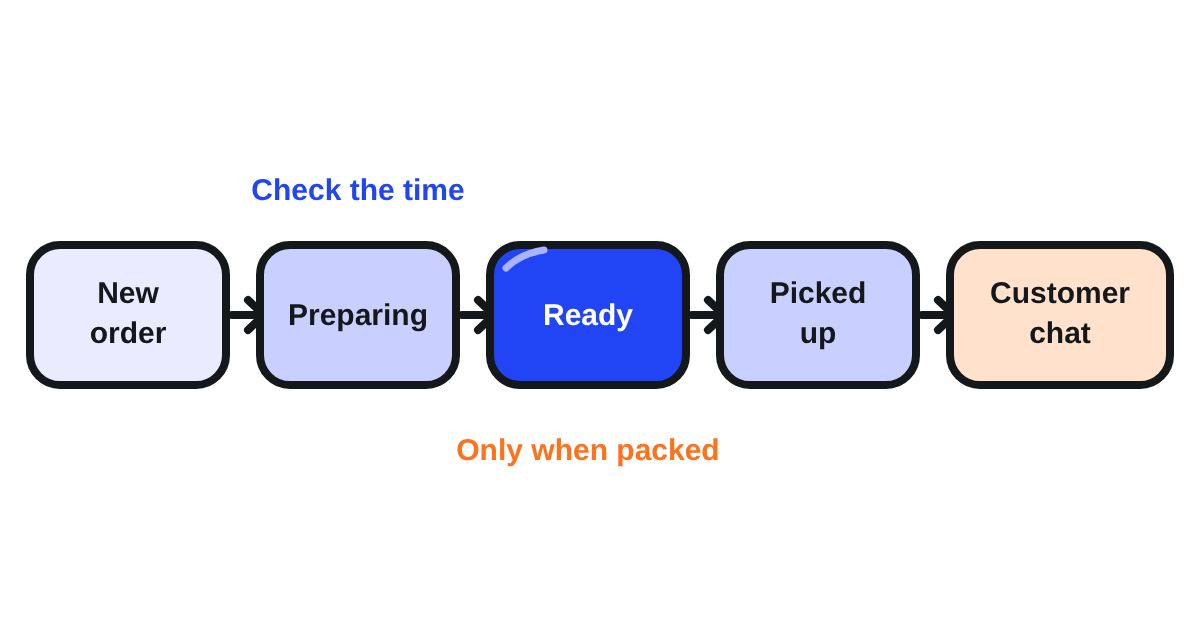
Look at the estimated preparation time at once. You can edit it within the first three minutes of receiving an order15, and you should when the kitchen is busier than usual: an accurate time brings the delivery partner when the food is ready, not before and not after. Grab Singapore recommends preparing orders within 15 minutes16.
Why does the Ready button matter so much?
Because Grab learns from it. Tap Ready only when an order is completely prepared and packaged for pickup17. Used correctly, it helps Grab's system adjust the estimated preparation time for your future orders20. Pressed too early, it can raise your order delay rate and lower your quality score18, affecting your ranking and visibility on the platform19.
Singapore says what is at stake. Stores that meet their estimated preparation times may enjoy improved in-app visibility with a dedicated carousel and optimised radius21. Stores with a significantly low on-time preparation rate may face limitations in campaign participation and a slight reduction in radius22. The button costs one tap; the habit decides how far away customers can still find you.
What do you do when a dish runs out or the kitchen is full?
Act in the app before the next order, not after it. In the Menu tab, make the item unavailable4. If you cook a fixed number of portions, a sales limit can help prevent overselling when stock runs out23. When the kitchen is full, switch to Busy: your store stays open and receiving orders, but with a longer preparation time24. Each of these stops a cancellation that would otherwise count against your store.
How do you answer a customer after the order?
In Singapore, customers can start a chat with you for up to 3 hours after their order is completed25, and you find the chats in the Inbox, under Chats26. Use chat for what you can fix: a clarification, a missing side dish, a redelivery or replacement at your own cost36. For stores where direct chat resolution is switched on, which Grab says is available to only select merchants28, speed matters: if you don't reply within 30 minutes of a customer's first message, the system tells them to escalate to support27. A quick, polite answer can keep a complaint from becoming a low rating.
Where do you read how your store is doing?
Two places. The History tab shows your orders, and marks with an "Ads" label each order an ad influenced29. In Singapore, an order counts for an ad if it was placed within 24 hours of an ad click30 or 1 hour of an ad view31: that label tells you which orders your ad budget really brought.
Insights, in the app and the portal, show your sales, your customers and your operations. Its offline rate shows how often your store was paused during the scheduled opening hours32. In the portal you can compare one store or several over any dates within the past 90 days33.
Should you ever log out of the GrabMerchant app?
Only when you must. Grab warns that after you log out, your restaurant will still appear as available to customers, but they will not be able to order34. A customer who finds you open and cannot order goes to the next restaurant. To close for the day, set your hours or your availability in the More tab instead6.
What should you check each day?
- The counter phone: notifications on, importance high, not on silent, GrabMerchant allowed to run in the background.
- Each new order's preparation time in its first three minutes.
- Ready tapped when the bag is closed, never before.
- Sold out dishes switched off, and a sales limit on the dishes you cook in batches.
- Busy mode at the rush, back to normal after.
- Customer chats in the Inbox, answered within half an hour.
- Once a week: the Ads labels in History, and your offline rate in Insights.
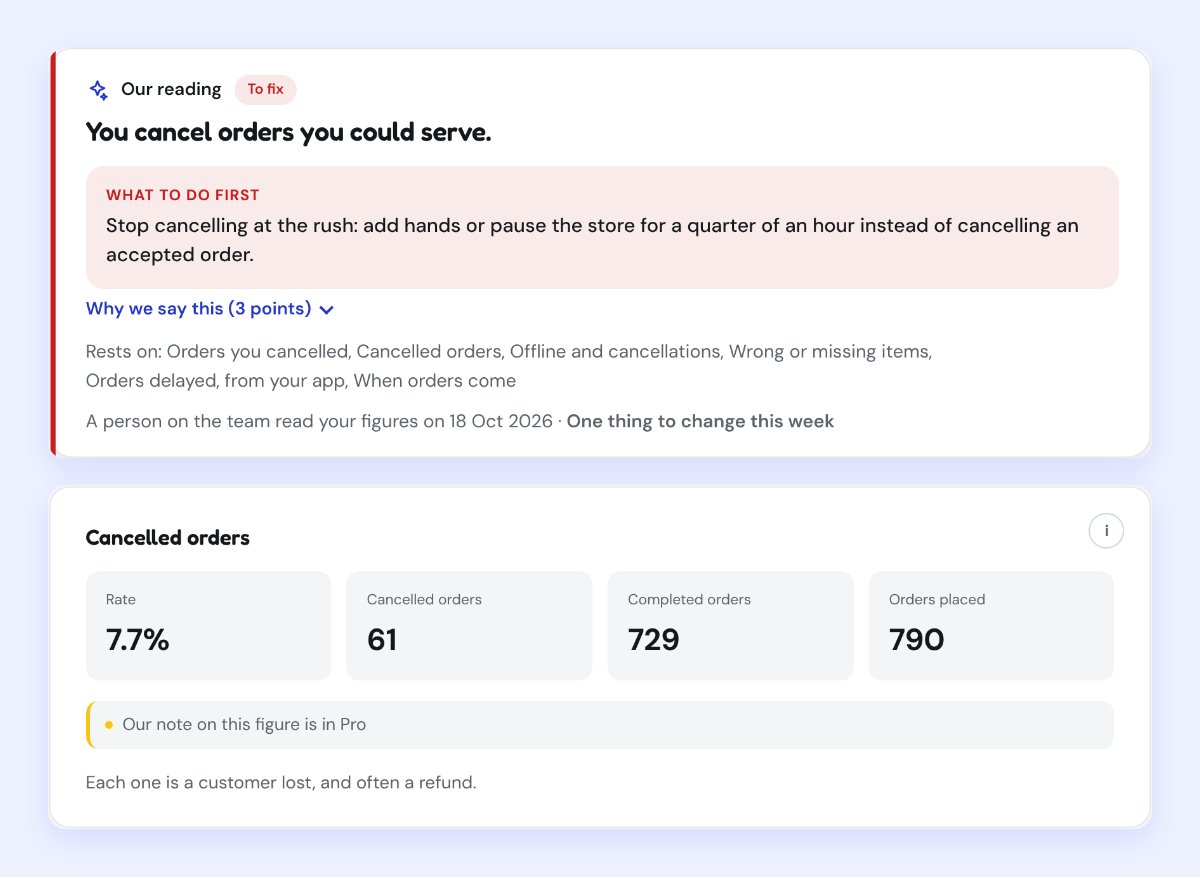
Kontimo reads your GrabMerchant figures each month and says, in plain language, which habit in the app is costing your store orders, so the next thing to change is the one that matters.
Sources 36 documents, every figure traceable to one
- How to use the GrabFood Merchant app (Grab merchant help centre, Singapore), text of the article (read on 2026-11-05)
Orders: View your order details and track your assigned delivery partner’s progress.
- How to use the GrabFood Merchant app (Grab merchant help centre, Singapore), text of the article (read on 2026-11-05)
History: View your daily order history for the past 30 days.
- How to use the GrabFood Merchant app (Grab merchant help centre, Singapore), text of the article (read on 2026-11-05)
Scheduled: View advanced orders so you will not have to prepare at the last minute ( 60 mins minimum, 2 days maximum).
- How to use the GrabFood Merchant app (Grab merchant help centre, Singapore), text of the article (read on 2026-11-05)
Menu: Review your menu and manage inventory by making items unavailable when you run out of stock.
- How to use the GrabFood Merchant app (Grab merchant help centre, Singapore), text of the article (read on 2026-11-05)
Inbox: Check for any Grab updates here
- How to use the GrabFood Merchant app (Grab merchant help centre, Singapore), text of the article (read on 2026-11-05)
More: Access the Grab Merchant HelpCentre and manage your outlet’s availability and hours here.
- Merchant roles & accesses (Grab merchant help centre, Singapore), text of the article (read on 2026-11-05)
Owner: You have full access to both the portal and app. You can add employees, assign roles, and customise access levels to protect sensitive information.
- Merchant roles & accesses (Grab merchant help centre, Singapore), text of the article (read on 2026-11-05)
Cashier: You have limited access to the GrabMerchant app, primarily for managing orders and daily sales.
- Merchant roles & accesses (Grab merchant help centre, Singapore), text of the article (read on 2026-11-05)
*By default, Cashiers can edit the store menu on the app.
- Merchant roles & accesses (Grab merchant help centre, Singapore), text of the article (read on 2026-11-05)
Create ads and promos ✔️ ✔️ ❌
- Fix GrabMerchant notification issues (Grab merchant help centre, Singapore), text of the article (read on 2026-11-05)
Ensure notifications are ‘ON’ and Importance is set to ‘High’ or greater.
- Fix GrabMerchant notification issues (Grab merchant help centre, Singapore), text of the article (read on 2026-11-05)
Note: Huawei and Xiaomi devices have task killer services that may interfere with notifications.
- How do I change notification sound for orders (Grab merchant help centre, Singapore), text of the article (read on 2026-11-05)
Customising your notification sounds can help you easily identify the status of your orders
- How do I change notification sound for orders (Grab merchant help centre, Singapore), text of the article (read on 2026-11-05)
Note: Notification sounds won’t work if your device is on Silent mode.
- How to edit your Order Preparation Time (OPT) (Grab merchant help centre, Singapore), text of the article (read on 2026-11-04)
You can edit the OPT within the first three minutes of receiving an order.
- Order FAQs (Grab merchant help centre, Singapore), text of the article (read on 2026-11-05)
We recommend preparing orders within 15 minutes to ensure prompt delivery to your customers.
- How to use the Ready button in my app (Grab merchant help centre, Singapore), text of the article (read on 2026-11-05)
Timeliness: Ensure you only mark an order as ready when it is completely prepared and packaged for pickup.
- How to use the Ready button in my app (Grab merchant help centre, Singapore), text of the article (read on 2026-11-05)
MOR abuse can increase your ODR, negatively impacting your Merchant Quality Program (MQP) score.
- How to use the Ready button in my app (Grab merchant help centre, Singapore), text of the article (read on 2026-11-05)
affecting your ranking and visibility on the platform.
- How to use the Ready button in my app (Grab merchant help centre, Singapore), text of the article (read on 2026-11-05)
When MOR is used correctly, it helps our system learn and adjust the estimated preparation time for your future orders.
- Why should I improve my preparation time (Grab merchant help centre, Singapore), text of the article (read on 2026-11-04)
Top merchant-partners who meet their estimated preparation times may enjoy improved in-app visibility with a dedicated carousel and optimised radius.
- Why should I improve my preparation time (Grab merchant help centre, Singapore), text of the article (read on 2026-11-04)
merchant-partners with a significant low on-time preparation rate* may face limitations in campaign participation and a slight reduction in radius
- Set up GrabFood sales limit (Grab merchant help centre, Malaysia), text of the article (read on 2026-11-03)
Setting a sales limit for an item can help prevent overselling when stock runs out.
- Activate Busy or Temporary Pause for my restaurant (Grab merchant help centre, Singapore), text of the article (read on 2026-11-03)
Busy Your store is open and receiving orders, but requires longer preparation time.
- What is customer-initiated chat (Grab merchant help centre, Singapore), text of the article (read on 2026-11-05)
Customers can start a chat with you for up to 3 hours after their order is completed.
- What is customer-initiated chat (Grab merchant help centre, Singapore), text of the article (read on 2026-11-05)
You can also find new and ongoing chats in the Inbox page under Chats within your GrabMerchant app.
- What is customer-initiated chat (Grab merchant help centre, Singapore), text of the article (read on 2026-11-05)
If you don't reply within 30 minutes of a customer's first message, the system notifies them to immediately escalate the case to support.
- What is customer-initiated chat (Grab merchant help centre, Singapore), text of the article (read on 2026-11-05)
Note: This feature is currently available to only select merchants.
- Viewing daily order history (Grab merchant help centre, Singapore), text of the article (read on 2026-11-05)
If an order was influenced by a simplified or à la carte ad, an “Ads” label will appear next to the order number.
- Viewing daily order history (Grab merchant help centre, Singapore), text of the article (read on 2026-11-05)
24 hours of an ad click, or
- Viewing daily order history (Grab merchant help centre, Singapore), text of the article (read on 2026-11-05)
1 hour of an ad view.
- Quick guide to GrabMerchant Insights (Grab merchant help centre, Thailand), text of the article (read on 2026-10-26)
The offline rate shows how often your store was paused during the scheduled opening hours.
- How to view insights for one or multiple stores (Grab merchant help centre, Singapore), text of the article (read on 2026-11-05)
You can choose dates within the past 90 days.
- How to use the GrabFood Merchant app (Grab merchant help centre, Singapore), text of the article (read on 2026-11-05)
Important: Please note that after you’ve logged out of the app, your restaurant will still appear as available to customers, but they will not be able to order.
- GrabMerchant portal overview (Grab merchant help centre, Singapore), text of the article (read on 2026-11-05)
Edit your menu or catalogue: Make real-time updates to your menu (GrabFood) or catalogue (GrabMart).
- What is customer-initiated chat (Grab merchant help centre, Singapore), text of the article (read on 2026-11-05)
Use chat for issues you can reasonably fix, such as simple clarifications, minor mistakes (like a missing side dish), or if you can offer a redelivery or replacement at your own cost.
Every figure above comes from one of these documents, as it stood on the date given. Your own contract and statements are the figures that count for your restaurant.